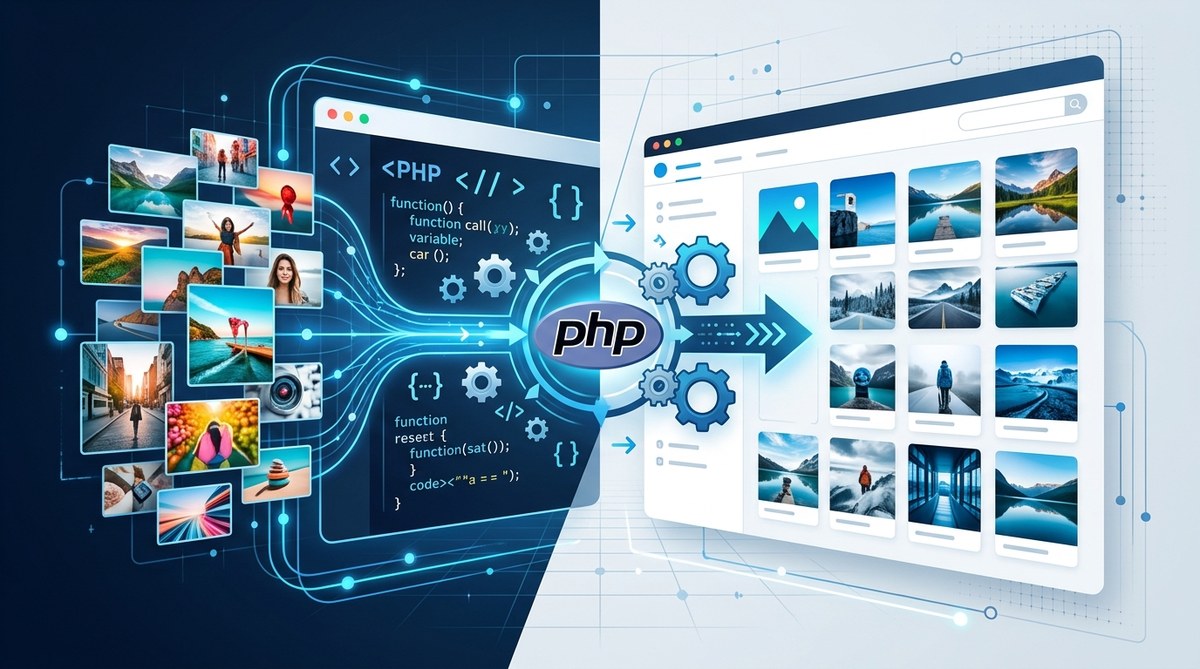
Images shape how users experience your site. Large photos slow down pages and steal precious bandwidth. On phpshare.org we present practical PHP tutorials that help developers build fast, reliable web apps. In this article you will discover resilient image resizing techniques you can implement on the server side. You will learn how to resize with GD and ImageMagick, how to preserve transparency, how to optimize for web delivery, and how to handle edge cases with confidence. Ready to make images work for you rather than against you? Let’s dive in.
Getting started with image resizing in PHP
Resizing images is more than just shrinking pixels. It is about preserving visual quality while delivering fast load times across devices. The goal is to generate the right size for the user’s device, reduce data transfer, and maintain a consistent look and feel.
Why resize images on the server
- Reduce bandwidth for users on mobile networks
- Improve page load times and Core Web Vitals
- Ensure consistent presentation across devices
- Enable responsive images without repeating processing in the browser
Quick overview of common tools
- GD library: bundled with PHP, fast for simple tasks
- ImageMagick: powerful image processing toolkit, handles many formats
- Imagick extension: a PHP wrapper around ImageMagick
- Interventions Image: a convenient PHP library that wraps GD and ImageMagick behind a clean API
Understanding image formats
- JPEG: great for photos, supports compression, not ideal for transparency
- PNG: supports transparency, good for graphics and overlays
- GIF: simple animations, limited color depth, transparency options
- WebP: modern format offering good quality and compression (where supported)
- RAW and TIFF: primarily server side workflows and specialized apps
Core resizing techniques
Basic resize with GD
GD provides a straightforward path for resizing images. The typical flow is:
- Load the source image with an appropriate function such as imagecreatefromjpeg or imagecreatefrompng
- Create a destination canvas with imagecreatetruecolor
- Copy and resample the source onto the destination with imagecopyresampled
- Save or output the result with imagejpeg or imagepng
Key points to keep in mind:
- Use imagecreatetruecolor for high quality results
- Preserve color depth and avoid palette based images when possible
- For JPEG output you can set a quality level with imagejpeg($dest, null, $quality)
Inline example style guidance:
– Determine target width and height
– Compute the scaling ratio to preserve aspect
– Use imagecopyresampled for better quality than imagecopyresized
Maintaining aspect ratio
Preserving aspect ratio is essential to avoid stretched images. A common approach is:
- Compute the scaling ratio as min(targetWidth / srcWidth, targetHeight / srcHeight)
- Set newWidth and newHeight by multiplying the original dimensions by the ratio
- Center crop or letterbox if needed based on your design
Practical tip: if you want to scale by width only, set newWidth to your target width and compute newHeight accordingly
Handling transparency
Preserving transparency is crucial for PNG and GIF. The typical steps are:
- When resizing PNG or GIF, enable alpha blending on the destination with imagealphablending($dest, true)
- Preserve alpha with imagesavealpha($dest, true)
- Fill any transparent areas as needed before resampling
This ensures the final image keeps its alpha channel intact after resizing
Resizing from URL or remote images
Resizing remote images can be risky. Prefer downloading to a local cache first to avoid remote fetch failures and to prevent bandwidth spikes on the source server. If you must fetch from a URL at runtime, verify:
- The URL is trusted and validated
- You respect the remote server’s terms and avoid hotlinking
- You consider caching and timeouts to avoid long waits
Saving and output options
You have two main choices:
- Save the resized image to a file for reuse
- Output the image directly to the browser or API client
For saving:
– Use imagejpeg($dest, $path, $quality) or imagepng($dest, $path, $quality)
For direct output:
– Set the proper Content-Type header, e.g. header(‘Content-Type: image/jpeg’)
– Then output with imagejpeg($dest, null, $quality)
Quality and optimization
- JPEG quality: a value between 70 and 90 usually delivers a good balance
- Progressive JPEGs can improve perceived load time on slow connections
- WebP support may require additional configuration but can offer smaller files
- When possible, resize to the exact needs of your UI rather than scaling in the browser
Handling errors and validation
- Validate inputs: ensure width and height are positive integers
- Verify the source file exists and is an image using getimagesize
- Check for PHP memory limits and image processing resource usage
- Implement try catch like error handling around image operations if using higher level libraries
Resizing multiple images at once
Batch processing is common when you upload a gallery or product catalog. Consider:
- A script that reads a directory and processes each file
- A queue based approach to throttle server load
- Storing derived sizes in a predictable directory structure like /images/thumbs/{width}x{height}/filename
ImageMagick approach
Why use ImageMagick
ImageMagick is extremely capable and can outperform GD for large or complex operations. It also supports a broader range of formats and feature sets.
Using the Imagick extension
The Imagick PHP extension provides a rich API to perform sophisticated resizing and transformations. Typical steps:
- Create a new Imagick object with new \Imagick($path)
- Resize using $imagick->thumbnailImage($width, $height, true) or $imagick->resizeImage($width, $height, \Imagick::FILTER_LANCZOS, 1)
- Preserve transparency with consistent handling of the alpha channel
- Write the result back with $imagick->writeImage($destPath)
ImageMagick features beyond basic resize
- Content aware or smart resizing options in ImageMagick for advanced use cases
- High quality resampling filters such as Lanczos or Catrom
- Support for a wide array of input formats and color spaces
When to choose ImageMagick over GD
- You work with very large images or need advanced transforms
- You require better color management or format flexibility
- You want robust batch processing capabilities and pipelines
Alternative: Interventions Image library
Interventions Image provides a friendly API that can wrap either GD or ImageMagick behind the scenes. It simplifies typical resizing tasks and helps keep code expressive. Key benefits include:
- A clean, chainable API
- Automatic driver selection based on your environment
- Consistent handling of transparency and quality settings
- Easy integration with Laravel or other frameworks
If you prefer a unified API across projects, this library is worth a look
Content aware resizing and modern workflows
Content aware resizing aims to preserve important image regions while reducing less critical areas. While this is more common in specialized tools, you can approximate it in PHP by:
- Analyzing the image to identify key subjects with edge detection or saliency maps (advanced)
- Performing targeted crops before resizing to maintain essential content
- Using ImageMagick with liquidRescale for more sophisticated results when available
This area opens up opportunities for more advanced image pipelines on the server side
Practical examples and code patterns
While this article avoids lengthy code blocks, here are practical patterns you will implement in your projects:
- Pattern 1: Simple GD resize
- Load the source image with imagecreatefromjpeg or imagecreatefrompng
- Create a destination canvas with imagecreatetruecolor
- Copy and resample using imagecopyresampled
-
Save with imagejpeg or imagepng
-
Pattern 2: Aspect ratio preserved with GD
- Compute ratio = min(targetWidth / srcWidth, targetHeight / srcHeight)
- Set newWidth and newHeight from ratio
-
Center image on a canvas if you need letterboxing
-
Pattern 3: Transparent PNG resize
-
Before resampling, enable alpha blending and save alpha to keep transparency intact
-
Pattern 4: Batch resizing script concept
- Loop over files in a directory, resize to each target size, and store in a corresponding subfolder
-
Log results and errors for audits or retries
-
Pattern 5: ImageMagick workflow
- Use Imagick to read the source, call resizeImage or thumbnailImage with appropriate filters
- Write the result to a destination path, keep a consistent naming scheme
Performance and caching strategies
Performance is the main driver of a robust image pipeline. Consider these practical strategies:
- On demand vs pre generation
- On demand: generate image sizes when requested for the first time
- Pre generation: create common sizes during upload to reduce latency
- Cache busting
- Include versioning or a hash of the source image in filenames to ensure updates propagate
- File system organization
- Store derived sizes in a predictable directory tree like /images/{width}x{height}/filename
- CDN and edge caching
- Serve transformed images via a CDN or edge network to improve latency
- Lazy loading
- Deliver low resolution placeholders early and swap in high resolution images as needed
Security considerations
Resizing images on the server can expose vulnerabilities if not handled properly. Important checks include:
- Validate inputs strictly
- Ensure width and height are positive integers
- Validate the MIME type or file extension to allow only image types
- Sanitize and verify file paths
- Prevent directory traversal by normalizing paths and removing suspicious patterns
- Avoid remote image processing when unnecessary
- Fetching images from external sources increases risk and latency
- File permissions
- Use restricted permissions on generated images, and avoid executing uploaded files as scripts
Real world workflow you can adopt
1) Receive an image upload
– Validate the file type and size
– Store the original in a secure location
2) Decide on the needed sizes
– Common sizes might include thumbnail, small, medium, and large
– Include a WebP variant where supported
3) Generate derived images
– Resize using GD or Imagick based on your environment
– Preserve transparency for PNG and GIF where required
4) Cache and serve
– Save the derived images to a cache path
– Integrate with a CDN for distribution
5) Clean up and monitor
– Remove old derived images when the source changes
– Log errors and monitor resource usage
FAQ and common gotchas
How do I maintain aspect ratio when resizing
Always calculate the scaling factor as the minimum of width ratios and height ratios. Apply that factor to both dimensions to preserve the image proportions
Can I preserve transparency
Yes for PNG and GIF. Ensure alpha is preserved on the destination and that the source alpha channel is respected during the resize
Can I resize from URL
You can but it is risky. Prefer downloading the image to a local cache first and validating the content before processing
How do I handle very large images
Use memory efficient approaches:
– Process in chunks where possible
– Use Imagick with appropriate limits
– Increase PHP memory limits only when necessary and safe
How do I resize multiple images at once
Set up a batch script that iterates over a directory, resizes to all required sizes, and stores them in a well organized folder structure. Use logging to track successes and failures
Wrapping up
Server side image resizing is a cornerstone of fast and friendly web apps. By combining the reliability of GD for straightforward tasks with the power of ImageMagick for advanced scenarios, you gain a flexible, scalable workflow. Remember to consider aspect ratio, transparency, and format choices to deliver crisp visuals without unnecessary data burden. At phpshare.org we believe practical, well documented code patterns and thoughtful architecture win long term. Start with a simple resize today and evolve toward a complete image processing pipeline that grows with your app.
If you would like more hands on guidance, reach out to the PHP Tutorials team here at phpshare.org. We publish regular tutorials on image processing, caching strategies, and performance optimization so you can keep your web apps fast and reliable.
No Responses